I have been experimenting with getting generative AI-models to output images that imitate the style of my own artworks. I have mainly two reasons for this:
1) I want my own art style to shine through to make the images unique and blend well with other artworks in the game that I may have created from scratch. I also do manual edits to the AI-generated images to remain in full control of the final results. These edits also blend very well into the rest of the image when it’s in the same style.
2) I want to actively avoid imitating other artists styles. Inspired by? Sure! Imitate? No thanks.
1. Train the AI-Model On Your Own Artworks
There are many models and services out there. Many of the services that are specialized on image generation have functionality to customize the output of the models. I have tried several different ones. The one I use at the moment is Leonardo AI. I will show how to do it there, but similar workflows can be implemented in many other services.
1) In Leonardo AI I use the function called Elements. Access it by clicking on More and then Train Your Own Model.

2. Click Your Elements and Train New Model.

3. Choose Style. Press Next.

4. Choose an existing Dataset or create a new one by pressing Create New.

5. Choose a name for your new Dataset and upload your images. Here you can also see an estimate of the cost to create the dataset and train the model. How many Model Tokens you have will depend on your subscription. Currently, every 15 images in the dataset will increase the Training cost.

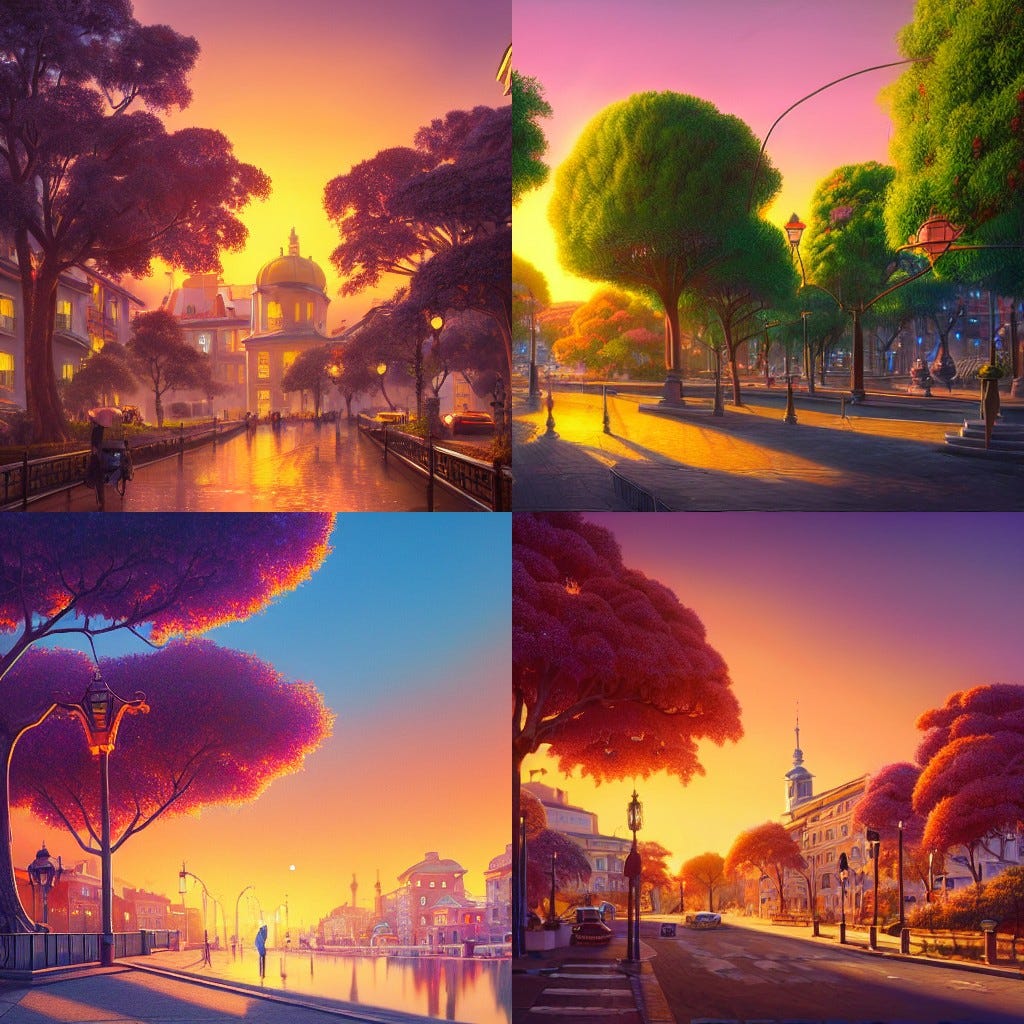
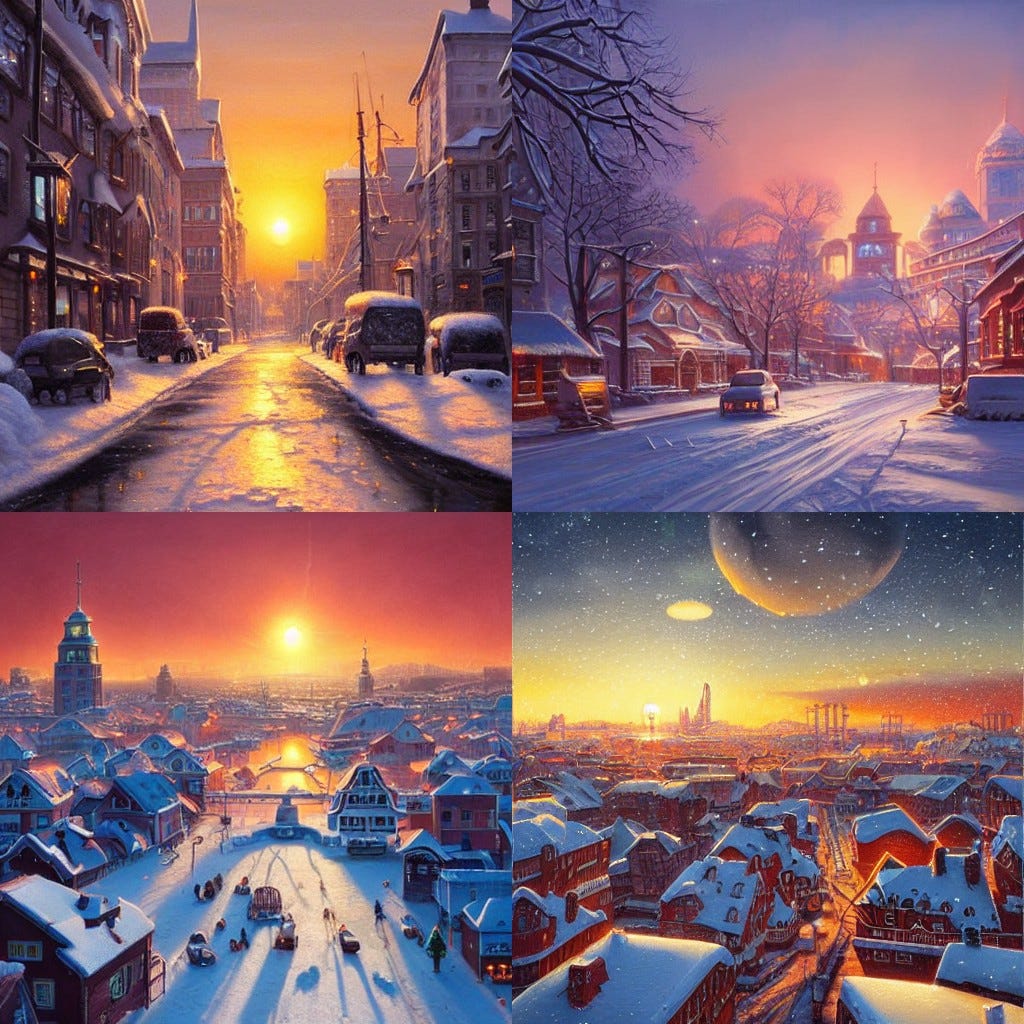
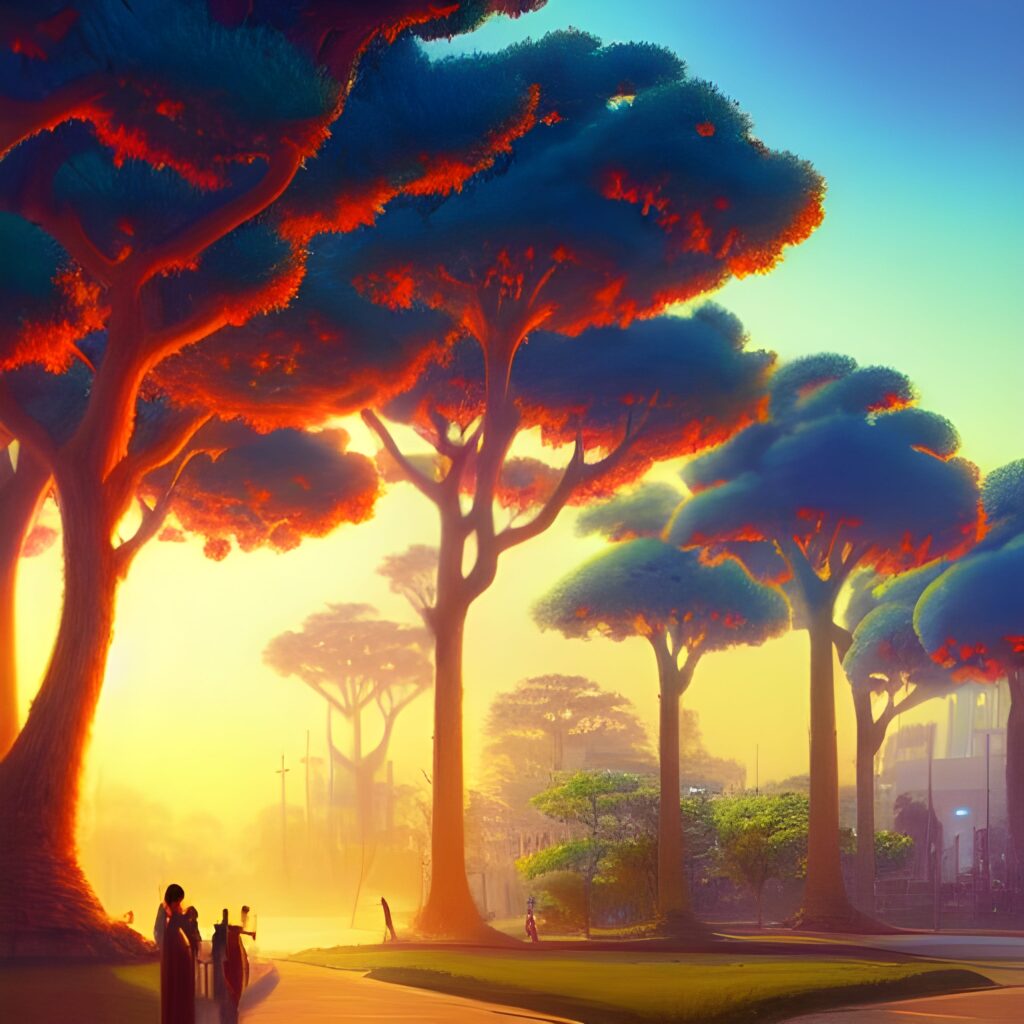
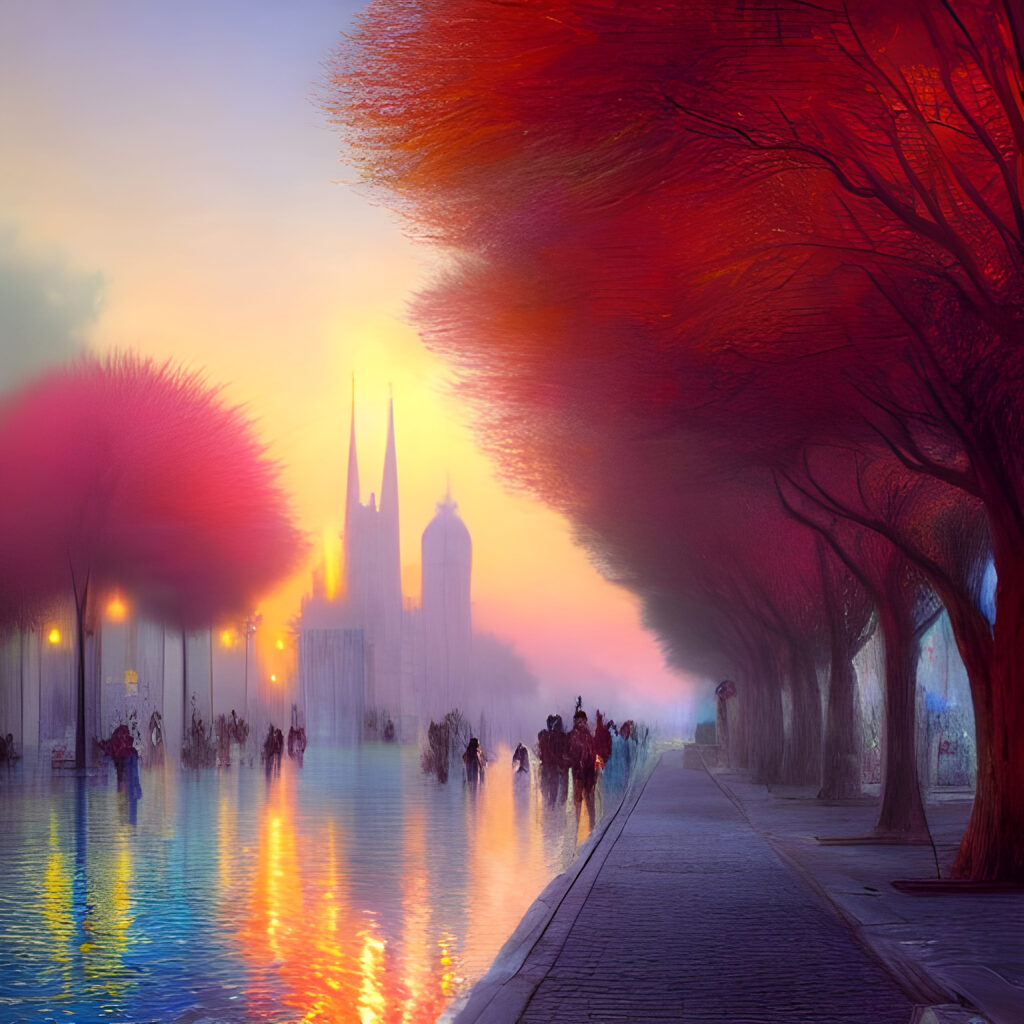
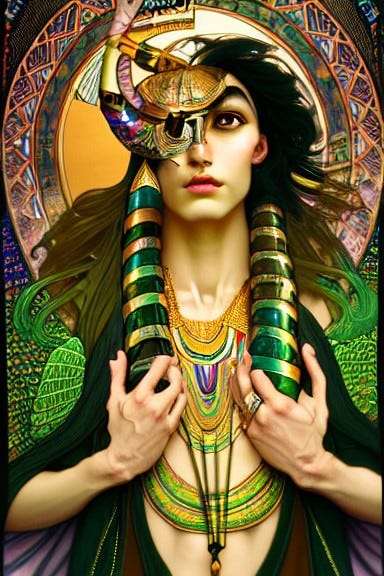
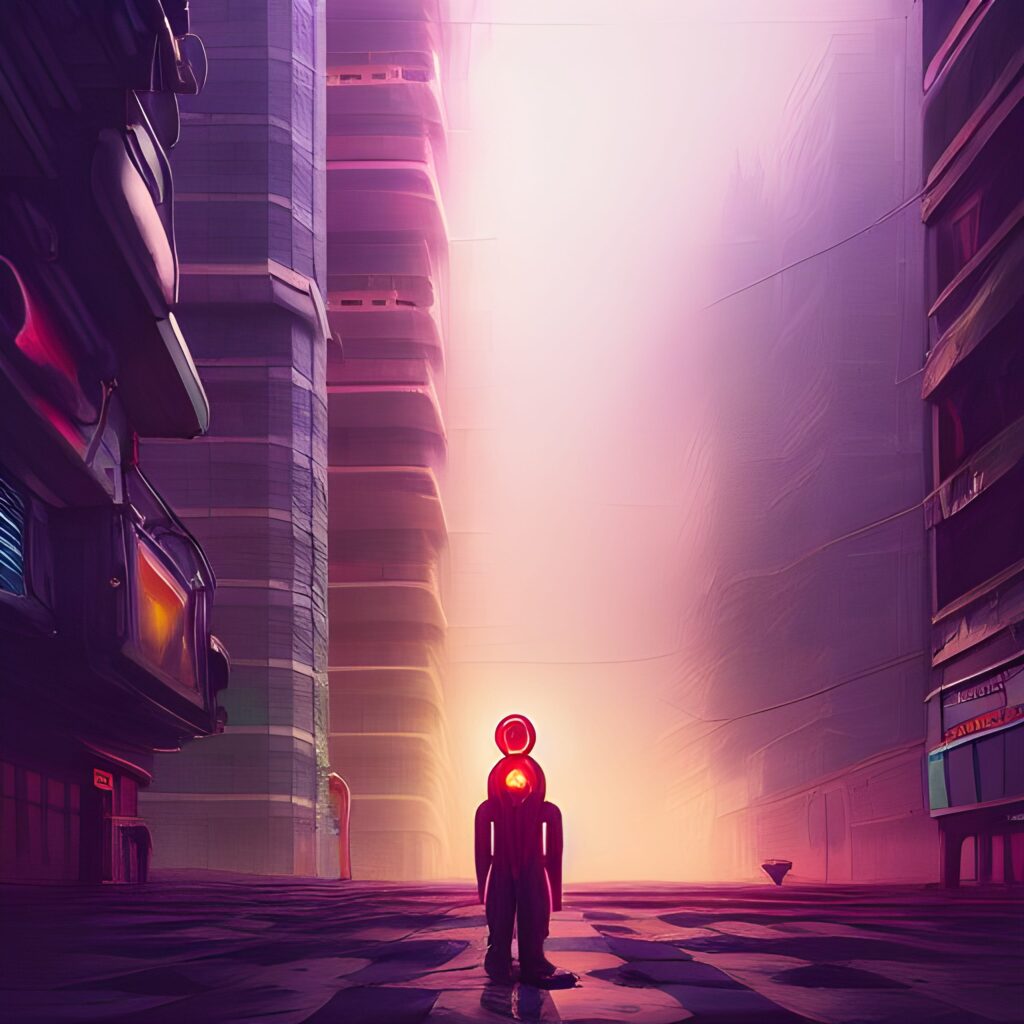
You can select up to 50 images, but in my experience you don’t need that many images to create a great style. I have got great results with as few as five images. It is important that the images you choose are high-quality and have a consistent style while also offering a variety of subjects, settings etc. This is an example of five of my own original artworks I have used to create a style I like:

6. Go through the remaining steps and confirm that you want to start the training. This will take some time. You will get notified when your new Style is ready.
2. Create Lots of Images Using the New Elements Style
1. Go to the Image Generator in Leonardo AI. Press the “image”-button next to the text prompt. Go to Your Elements and select the new style you have created.

2. The Element is added to your prompt window. You can set the Strength of your Element. Write your text prompt and see if you like the results.

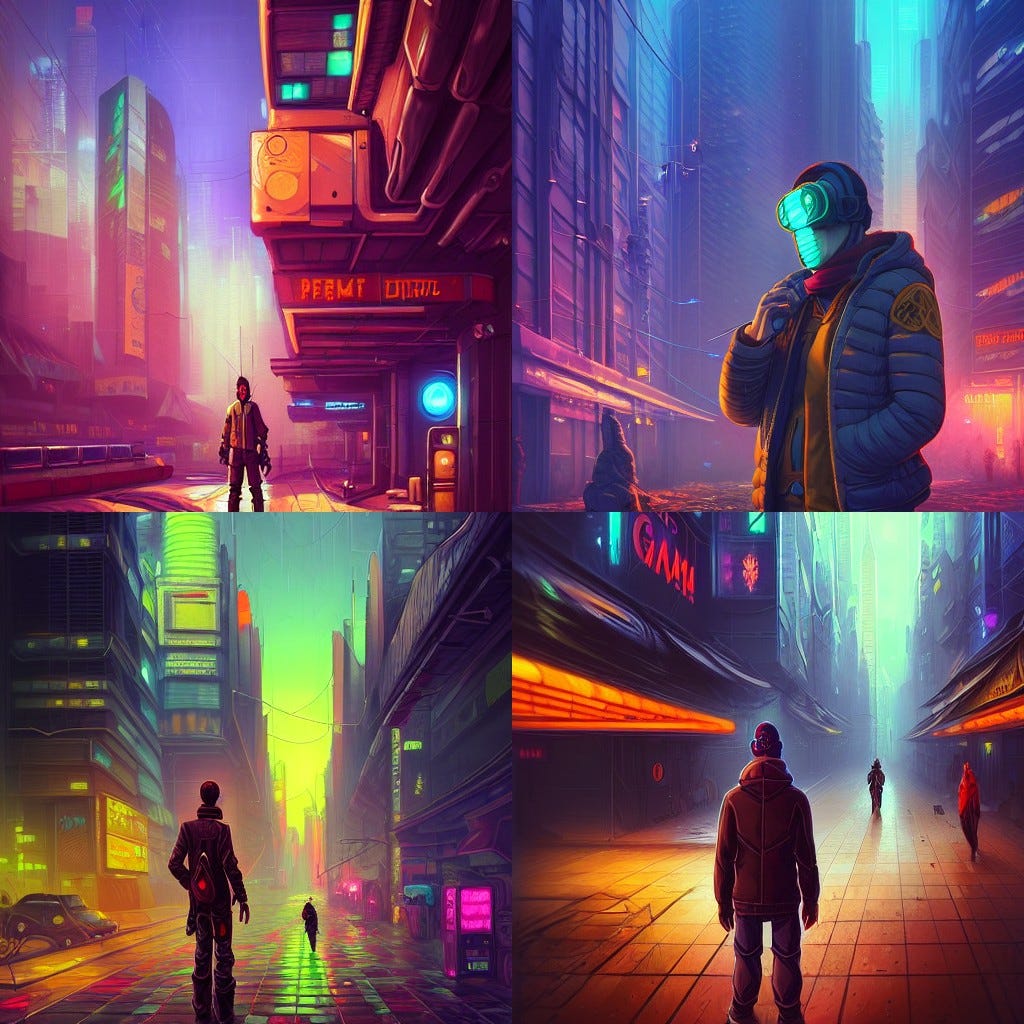
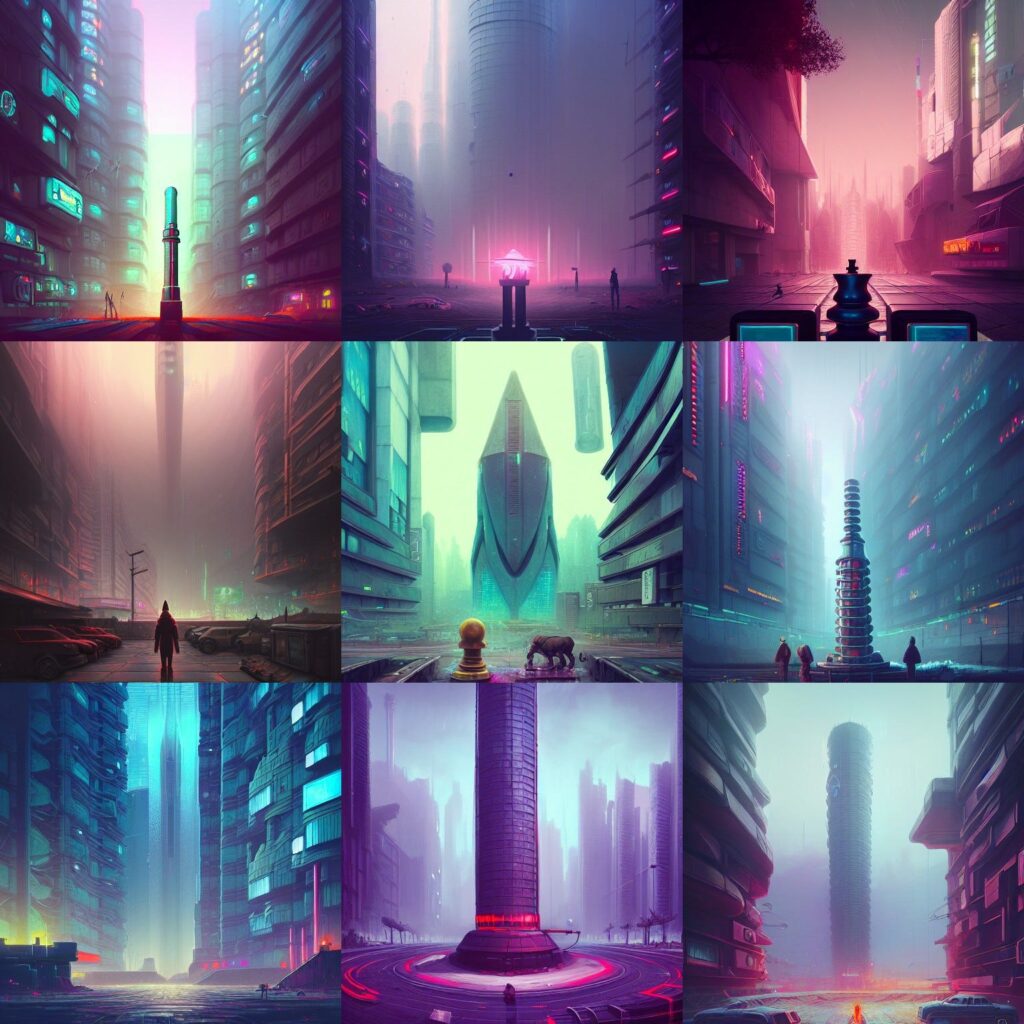
I usually ask Leonardo to produce 4 or 8 images at a time to get a wide range of alternatives to select from. It is often helpful to get the object/character against a neutral background with a single color. This helps me a bit during the last step in my workflow, where I combine several images and do my own modifications in Photoshop.

3. Most of the time I create the character and the background separate from each other. This makes it easier to have control over the composition of the image, by combining different parts manually later.

4. Another trick is to use the edit function (via Nano Banana) in Leonardo AI to change a generated image into a black-and-white line drawing. This allows me full control over the color scheme, by doing the coloring and the lighting myself in Photoshop, while still saving time by generating the base line drawing.


3. Make Manual Modifications, Combine Images and Finish the Artwork
1. The AI-models are getting better at details such as hands and feet. Nonetheless it is still very difficult to get the models to get all the details exactly as you want them with text prompting alone. I usually have to manually edit some or many parts of the generated images to have full creative control of the end result. This is also a lot faster than trying to find the perfect prompt, at least if you have some artistic experience and know how to use an image editor.


2. This is also where I combine several images into a coherent composition. Usually one or several characters and a background. I also adjust or add shadows and lighting as well as adjust levels, saturation etc.

An added bonus with this last step is that the resulting artwork is legally more clearly a creative work done by you, the human. In most jurisdictions this is often important if you want to claim copyright over the finished work.
This workflow allows me to create artwork rapidly while staying in creative control. Please let me know what you think!